Windows Desktop App Testing Without Writing Code
Windows desktop app testing without code: record the workflow once, choose what to verify and run it on every build. No scripts, no element ids.
To test a Windows desktop app without writing code, record the workflow once, choose what the test verifies, and run it on every build. In GUI Test Studio, the recording becomes the test.
You searched for desktop application testing and found code libraries. Now you write scripts, inspect element trees and tune waits, and the next version of the app will break half of it. This article shows the way out.
Why is Windows desktop app testing usually a coding job?
Definition
Desktop application testing with a code library means describing the app to a script.
- For every step, the script must find a window, find an element inside it, wait until it is ready, act on it and read back a result.
The work is programming, even when the test itself is three clicks.
Libraries such as pywinauto, FlaUI and WinAppDriver are made this way, for people who write code every day. A tester who knows the app by heart, but not the programming language, is left waiting for a developer.
A test written as code
- 1Start the app and find its window
- 2Find the Save button by its id
- 3Wait until the button is ready
- 4Click it
- 5Find the message and read its text
- 6Compare the text with what you expect
Six things to write, for one click and one check.
A test recorded
You click Save and read the message, once.
The recording keeps
Nothing to write: the recording becomes the test.
Five things that slow a team down with a code library
A programmer is needed
Every test is a program, so the people who know the workflows best cannot write it or fix it.
Element trees to inspect
Before a script can click a button, someone opens an inspector tool and hunts for the button's id or name.
Apps that say nothing
Many apps describe only part of their screen, so a chart, a canvas or a custom grid stays out of a script's reach.
Timing code
The script must be told how long to wait for each window and each result, and a guess that is too short fails on a slow day.
Upkeep at every change
When a screen is redesigned, ids and names change, and the scripts are repaired one by one.
Timing alone is behind many tests that fail for no reason: see fixed sleeps in tests and flaky tests and false positives.
Code library or no code: what you write and keep up
The goal is the same either way: a test that does what a user does and checks what the screen shows. What differs is how much you write and maintain to get there.
| What a test needs | In a code library | In GUI Test Studio |
|---|---|---|
| Starting the app | Code that starts the program and waits for its window. | A box to tick: the test starts the app and closes it at the end. |
| Finding each button and field | A locator per element, found by inspecting the app, repaired when the screen changes. | Nothing to write: the recording keeps what the app says about each element, and its picture. |
| A control the app does not describe | Out of reach, or a workaround written by hand. | Found by sight, like any other element. |
| Waiting for the app | A wait written for each step, tuned again when the app gets slower. | Every check waits by itself, and goes on the moment the element is there. |
| Checking the result | Assertions written in code, one per value. | Checks made from the recording, changed on a timeline. |
| Reading a failure | A stack trace and a line number. | A report with expected beside actual, and the run's video. |
| Who can do it | A programmer who knows the library. | Anyone who knows the workflow. |
Making a test should take knowledge of the workflow, not knowledge of a programming language.
Windows desktop app testing without code: record, verify, run
GUI Test Studio automates end-to-end tests of any app without code. It is two apps. GUI Test Runner-Recorder records a test and runs it. GUI Test Studio edits it on a timeline, like a video.
Record
Do the workflow once
Verify
Choose what is checked
Run
On every build
Read
What passed, what changed
One recording gives you a whole test.
- Every click and key, replayed in the same order at every run.
- A check of each element you clicked, made before the click.
- Checks of what appeared on the screen, such as a dialog or a message.
- A file your team owns, with its steps, its pictures and its recording.
Which Windows desktop applications can you test this way?
Any program shown on a Windows screen, whatever it was built with. Nothing is added to the app: no test build, no library and no ids.
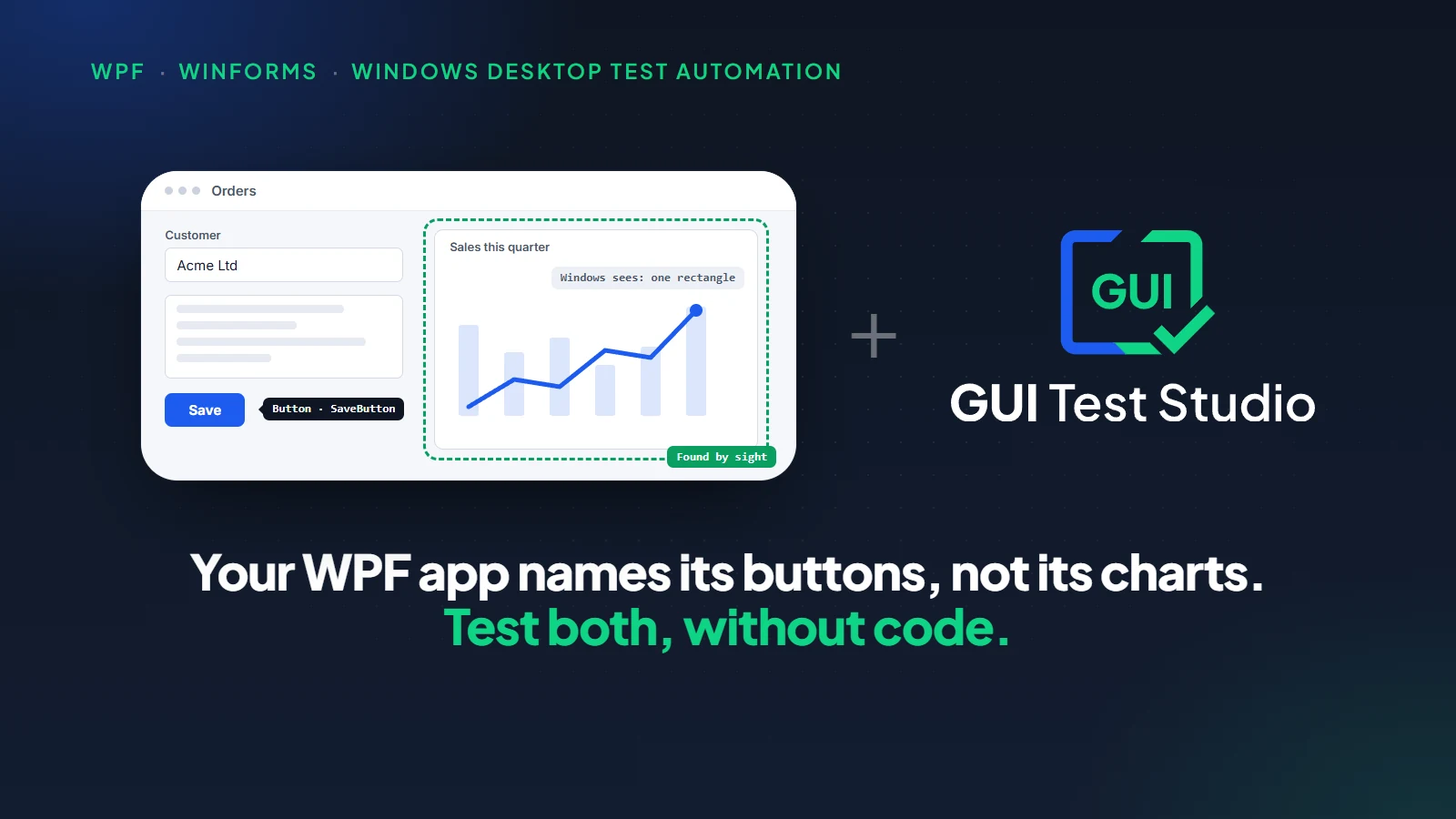
WPF and WinForms apps
Standard controls describe themselves, a chart or a custom grid does not.
Qt and other toolkits
What the app describes is used, and the rest is found on the screen.
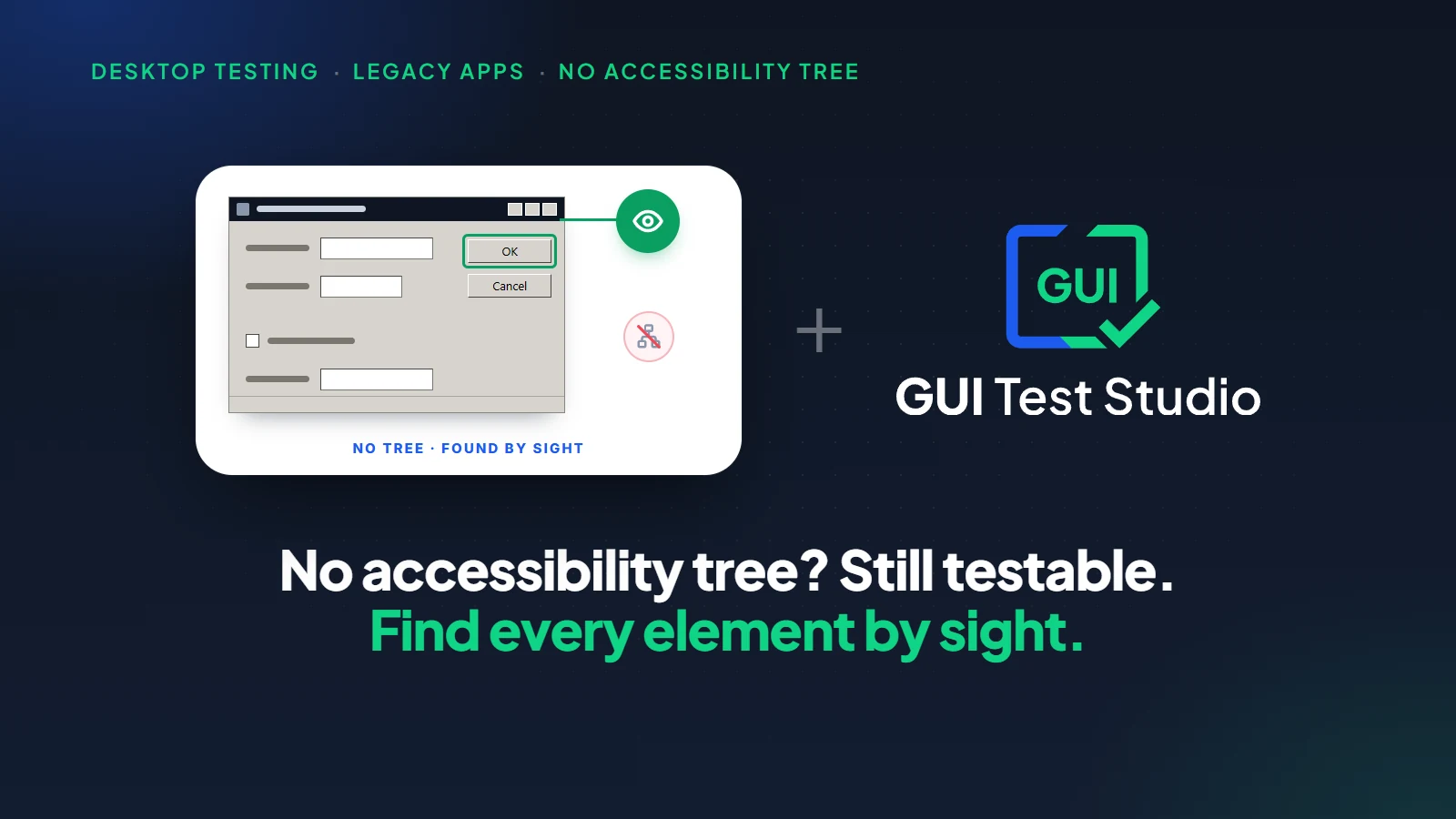
Older Windows apps
Many say little about their screens, and they are tested all the same.
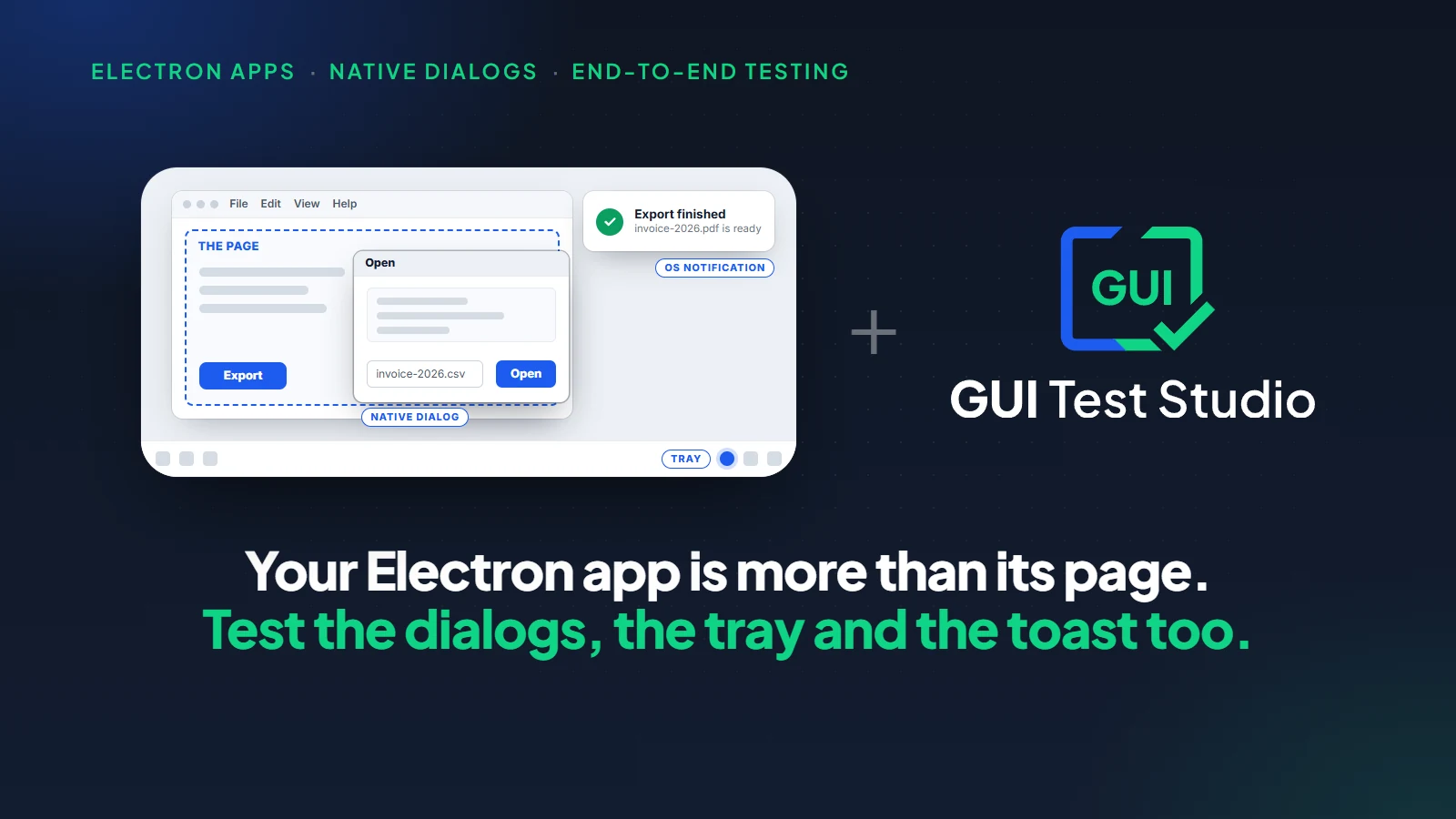
Electron apps
The page inside and the window around it, in one test.
Apps that draw their own controls
A canvas, a timeline, a map, a drawing area.
An app in a remote desktop window
Only a picture reaches your screen, and a picture is enough.
Three articles go deeper: WPF and WinForms test automation, Windows apps with no accessibility tree and Electron app testing.The guide to what you can test covers everything else, from web apps to an Android phone.
File dialogs, several windows, several monitors
A real workflow rarely stays in one window. It opens a file dialog, a settings window or a message box, sometimes on another monitor.
Main window
Click Import
File dialog
Choose the file
Preview window
Check the first rows
Second monitor
Read the result
One recording, one test
On a computer with several monitors, the recorder asks which screen the test uses: one monitor, or all of them for an app that opens its windows anywhere.
How does a test find a button without a script?
The GTS Engine + AI, the engine inside GUI Test Studio, has two ways to find each element. It asks the app first, through the app's accessibility information, the same description a screen reader uses. When the app says nothing, it finds the element by sight, the way you would.
| Your app | How each element is found |
|---|---|
| Describes its controls | Through what the app says, with the element's picture as a second way. |
| Describes some of them | Each element by the way that works for it, in the same test. |
| Describes nothing | By sight, on the screen. |
Two ways to one element make a test robust: a renamed id does not break it, and neither does a control the app never described.You choose nothing and inspect nothing, because the recording keeps what it needs by itself.How GUI Test Studio finds elements explains both ways.
How to automate a test of a Windows desktop app without code
A first test takes a few minutes. Pick a short workflow you know well: open a record, change a value, save, read the confirmation.
- 1
Put the app on its starting screen
Open your app on the screen where the workflow begins, in the state every run should start from.
- 2
Click Record and pick An app
In GUI Test Runner-Recorder, click Record, pick An app and choose your program.Tick the box that starts the app with the test and closes it at the end.
An app keeps the automatic checks to your program's windows, dialogs and menus. - 3
Do the workflow once
Click, type and scroll as a user would, at a normal pace. Press the Stop key when the workflow is done.
- 4
Choose what the test verifies
Answer the question What should this test verify? Keep the three cards as they are for a first test, then save the test.
Three cards decide which checks the test gets by itself. - 5
Run it and read the report
Put the app back on its starting screen and click Run Test.The Confidence Report opens with what passed and what changed.
- 6
Run it on every build
Add one gtr-cli command to your pipeline. A failed test then fails the build, with the run's video and pictures as artifacts.
Your first test, step by step walks through every screen, and Record a test explains each choice of the recorder.
Change a test later, without a programmer
A recorded test is not a black box. In GUI Test Studio it opens on a timeline: the recording on top, the clicks and keys under it, the checks under those. You move, add or remove a block the way you would edit a video.
| You want to | What you do |
|---|---|
| Check one more thing | Drag a check from the Assertions palette onto the timeline, and show it what to look for on the recording. |
| Give a slow screen more time | Raise the check's timeout in its Properties. |
| Type another value | Edit the text of the Type Text step. |
| Follow an intended change of the app | Accept the new look in the Confidence Report, in one click. |
Which check fits which need is in Choose the right check.What a failed run tells you is in how to read a test report.
Run the desktop tests on every build
A test pays off when it runs without anyone starting it. gtr-cli, the command-line runner, runs the same test in any CI/CD tool. A failed test fails the build, and the results arrive as JUnit, JSON or Markdown.
gtr-cli run tests --countdown 0 --junit results\junit.xml --artifacts results\artifactsRun tests in your pipeline lists every option.
Prefer to describe the test? Use the AI you choose
Recording is one of three ways to create a test.You can also describe the workflow in a prompt to Claude, to ChatGPT with Codex, or to a local AI model, one we provide or one you bring.The assistant records the test, adds the checks and runs it.
Which AI is used, if any, stays your team's choice.
- A cloud AI, with your own key.
- A local AI model, ours or your own.
- No AI at all: recording and running a test need none.
In every case the tests, the recordings and the reports are files on your computers.AI sovereignty in software testing says why that matters.
What to know before you start
| Limit | What it means |
|---|---|
| A run uses the real screen | A desktop test replays real clicks and keys, so the computer is busy during a run, and a build agent needs an unlocked desktop session. |
| The same starting point | A test replays from where the recording started. Put the app back on that screen before each run, or let the test start the app itself. |
| A test checks what it was told to check | A bug outside every check passes unnoticed. Choose the checks with care, and add one when a bug slips through. |
| Another theme or screen scaling | A correct screen looks different there.Give the test a version for it, not a copy: see one test for dark mode and every language. |
Key takeaways
- 1A code library turns desktop testing into programming: scripts, element ids, waits, and repairs at every change of the screen.
- 2GUI Test Studio needs no code: record the workflow once, choose what the test verifies, run it on every build.
- 3It tests any Windows desktop app, from WPF and WinForms to Qt, Electron, older apps and controls an app draws itself.
- 4Each element has two ways to be found: what the app says about it, and by sight when the app says nothing.
- 5The test stays yours to change: a file your team owns, edited on a timeline by anyone who knows the workflow.
Questions
Can I test a Windows desktop app without writing code?
Yes. Record the workflow once in GUI Test Runner-Recorder, choose what the test verifies, and run it. The recording becomes a test with its clicks, its keys and its checks, and nobody writes a script.
What is the easiest way to automate a Windows application?
Do the workflow once while a recorder watches. In GUI Test Studio, each click and key is kept, each element you clicked gets a check, and the test replays by itself on every build.
Do I need to inspect the app's element tree or know its control ids?
No. The recording keeps what the app says about each element, and a picture of it, by itself. You never open an inspector tool and never type an id.
Does it work for WPF, WinForms, Qt and older Windows apps?
Yes. Any program shown on a Windows screen can be tested, whatever it was built with. Nothing is added to the app: no test build, no library and no ids.
What if my app draws its own controls and tells a test tool nothing?
The test finds those controls by sight, on the screen, the way a person does. A chart, a canvas or a custom grid is tested in the same recording as the standard buttons around it.
Can a desktop test made without code run in CI/CD?
Yes. gtr-cli runs the same test from a command line in any CI/CD tool. A failed test fails the build, and the run's video, pictures and results are kept as artifacts.
Do I need AI to create or run the tests?
No. Recording and running a test need no AI. AI is a choice: a cloud AI with your own key, a local AI model that we provide or that you bring, or none at all.
What are the limits of testing a desktop app without code?
A desktop test uses the real screen while it runs. A test also checks only what it was told to check, so the checks are worth choosing with care.
pywinauto, FlaUI, WinAppDriver, WPF, Windows Forms, Qt, Electron and Windows are names or trademarks of their respective owners.