
GUI testing
Automated GUI testing, by what the user sees
GUI testing checks an application through its graphical user interface: the buttons, fields, menus and screens a person uses.GUI Test Studio automates it without code.You record a scenario on the real screen, or describe it in a prompt, choose what to verify, and run it again on every build.
The problem
Why GUI tests are hard to automate
The interface changes more often than any other part of an application, and tests that depend on its code break with it.
Selectors break
Tests that find a button by its code break when a developer renames or moves it, even when the screen looks the same.
Some interfaces cannot be reached
Canvas apps, games, remote desktops and custom toolkits give a script nothing to hold on to.
Checks miss what users see
A test can pass while a button is hidden, cut off or the wrong colour, because it never looked at the screen.
How it works
GUI testing the way you already test by hand
- 1
Record, or describe
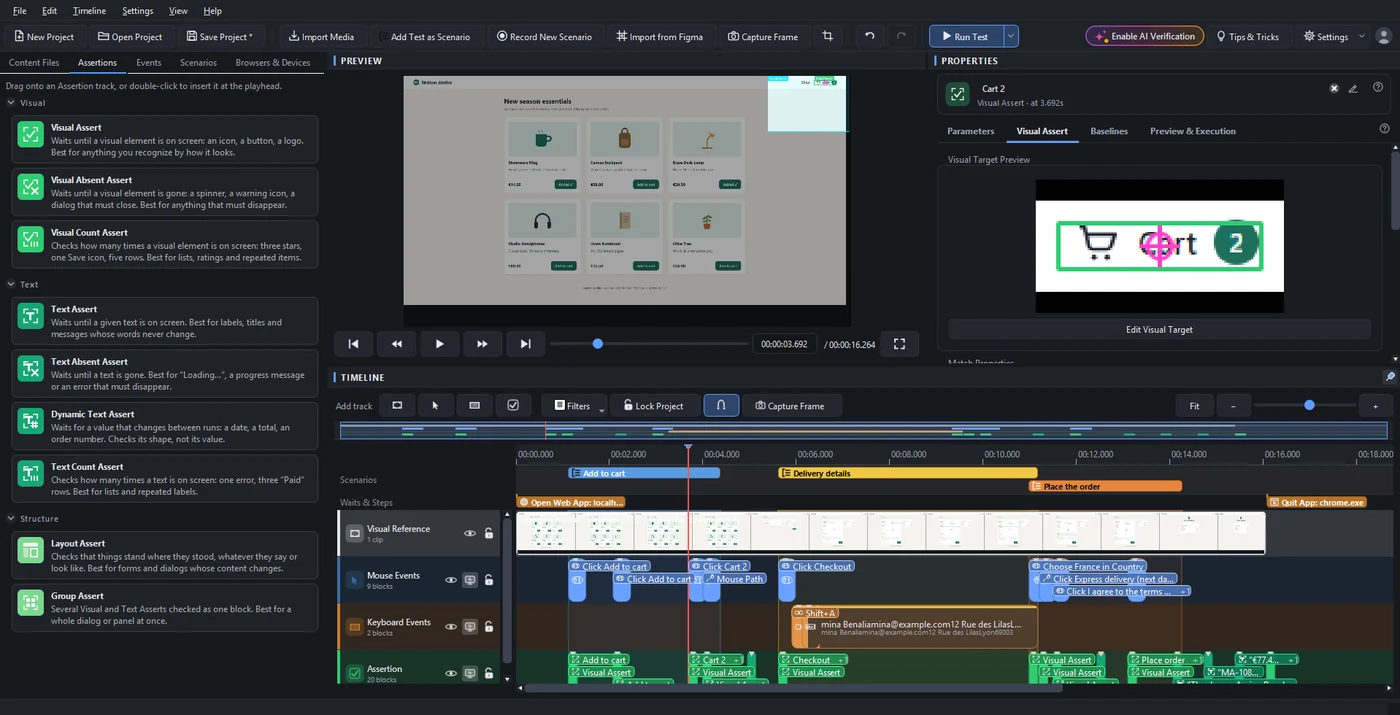
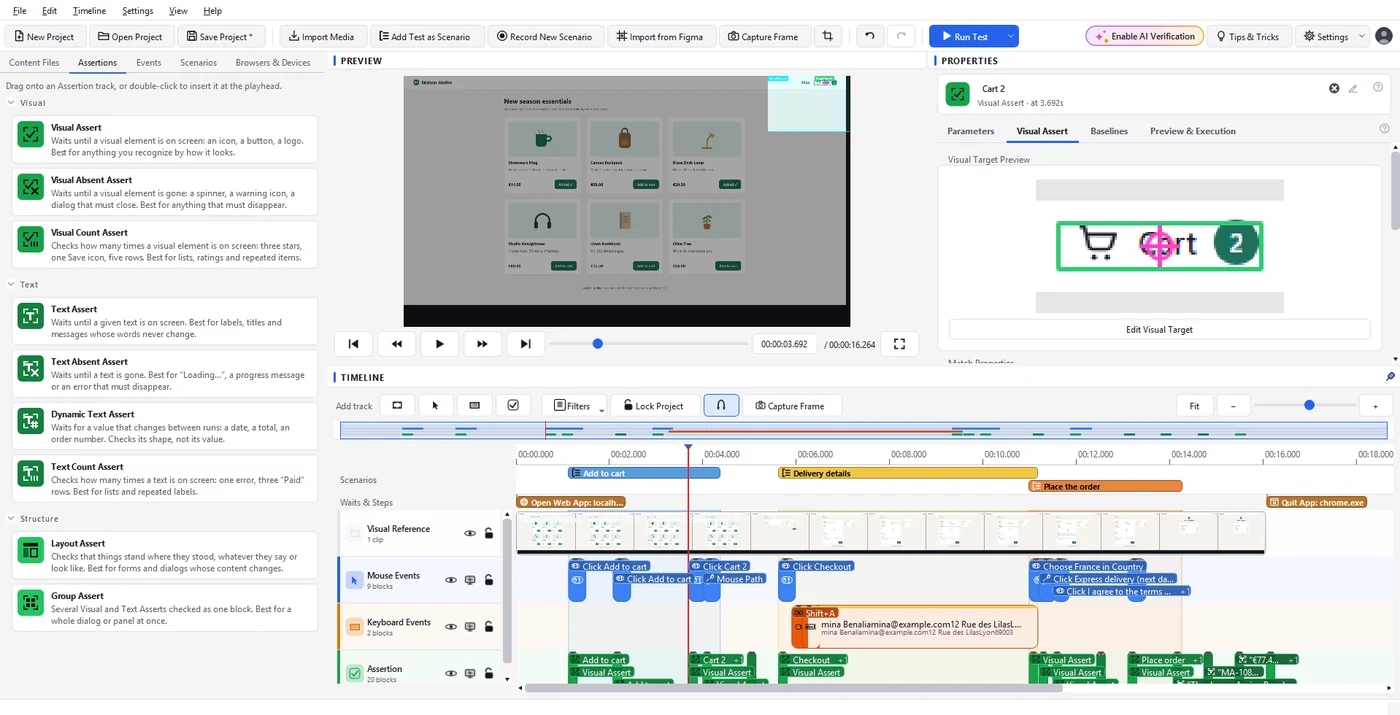
Use your application as a user would, or describe the workflow in a prompt and your AI assistant does it for you.Every click, key and gesture is recorded on the real screen, with the checks of what appeared.
- 2
Verify
Visual, text, layout and group checks confirm what the user sees: the right element, the right words, in the right place.
- 3
Edit like a video
Refine the test on a timeline: move, trim, rename and group steps, with undo for everything.Or just ask the AI for the change in a prompt.
- 4
Run on every build
Run it from the app, or from your CI/CD pipeline with the command-line runner.
- 5
Read the report
The Confidence Report says what passed, what failed and why, in plain words, with the pictures to prove it.
How it works
GUI tests that look at the screen
Finds elements two ways
The GTS Engine + AI finds each element through the app's accessibility information, and by sight on the screen when the app does not say, so a change in the code behind it changes nothing.
Uses the app's own elements too
When an application describes its elements to Windows, a test asks for them first, and looks at the picture when it does not.
Checks words, places and groups
Text checks read the words on the screen, layout checks confirm where things stand, and group checks hold several checks of one screen together.
Any app on your screen
Web apps, Windows software, phone screens, virtual machines and games, all tested the same way.
Edited like a video, or by prompt
A test is a timeline of steps you move, trim, rename and group, with undo for everything, or you describe the change in a prompt.
Updated in one click
When a screen changes on purpose, accept the new look from the report and the test expects it from then on.
Questions
GUI testing, answered
See GUI Test Studio on the kind of app you test: book a free 30-minute call with our team.
Or start on your own: the guides walk you through your first test in a few minutes.
Learn more