Product
Show it once.Verify it forever.
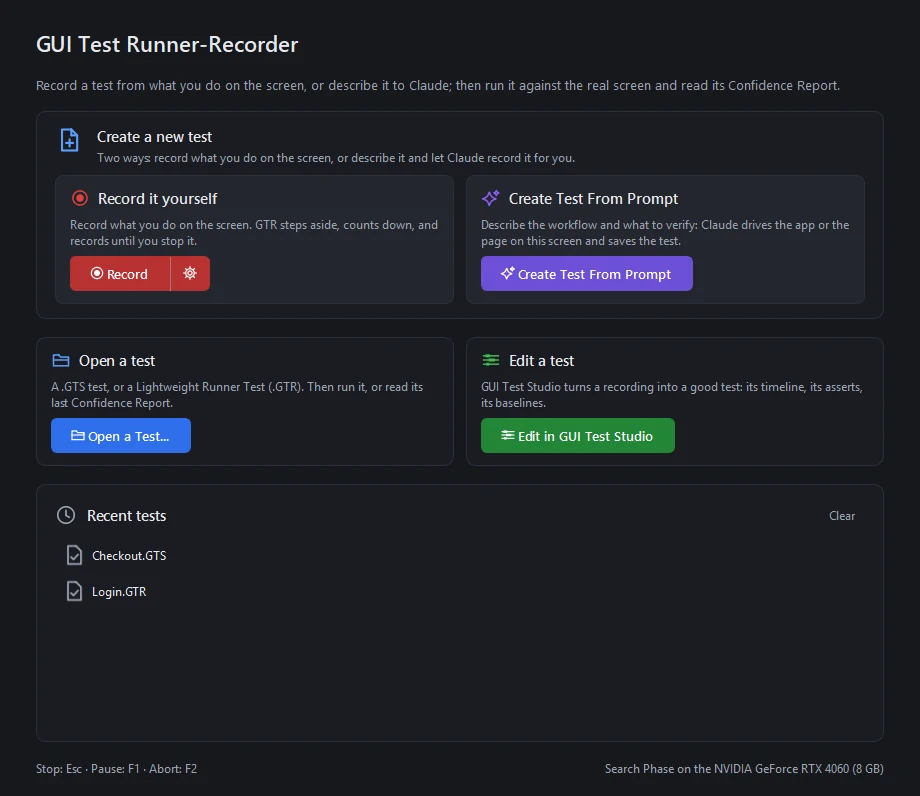
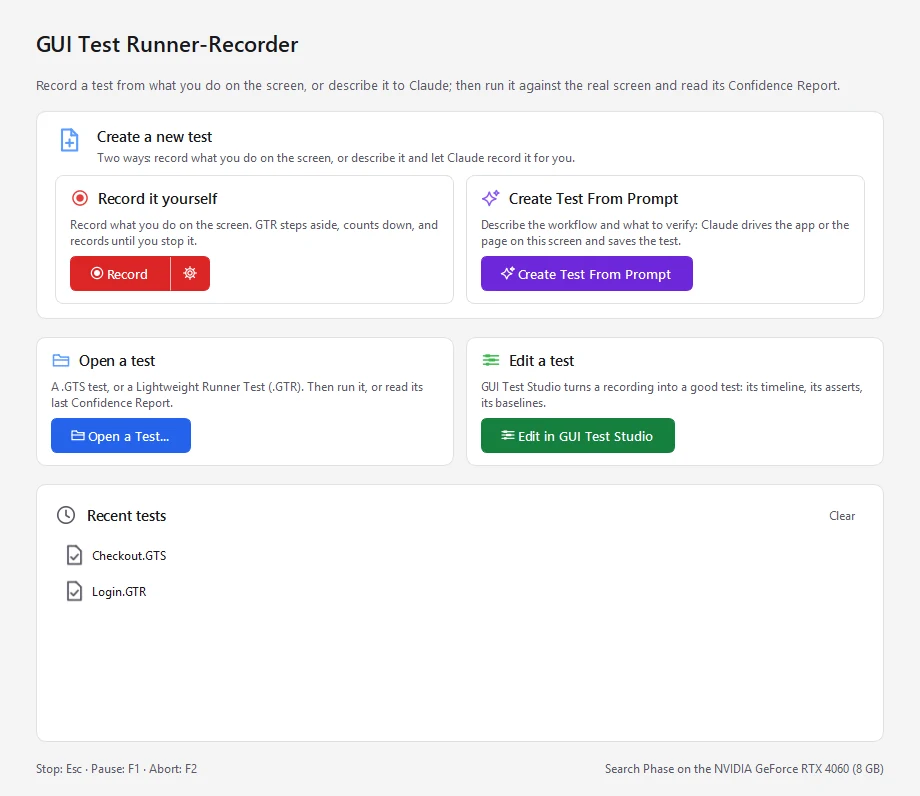
Creating and editing a test work together in one continuous workflow.Record your walkthrough as you use your application, or describe it in a prompt, then fine-tune actions, checks, and timing on an intuitive video-style timeline, or ask the AI for the change.Every step saves into a unified test format ready for immediate automated runs.
1. Record it, or describe it
Record on the real screen, the way a tester works
Capture your full desktop, a single application, a custom region, a macOS virtual machine, an Android device, or an iPhone screen streamed live to Windows.Just run your test scenario naturally, GUI Test Studio handles the rest.Or describe the workflow in a prompt, and your AI assistant records, verifies and runs it for you.
Complete input capture with automated checks
GUI Test Studio automatically records all user inputs, screen interactions, and dynamic popups, suggesting smart visual checks as you go.
- Tests From a Prompt: Describe the workflow instead: your AI assistant records it, verifies it and runs it, as a test you open and edit like any other.
- Smart Visual Detection: Automatically identifies interacted elements and new UI states.
- Instant Retakes: Scrap and re-record any sequence with a single click.
- Pre-Release Test Preparation: You can also import UI design assets before features are built to prepare tests in advance.
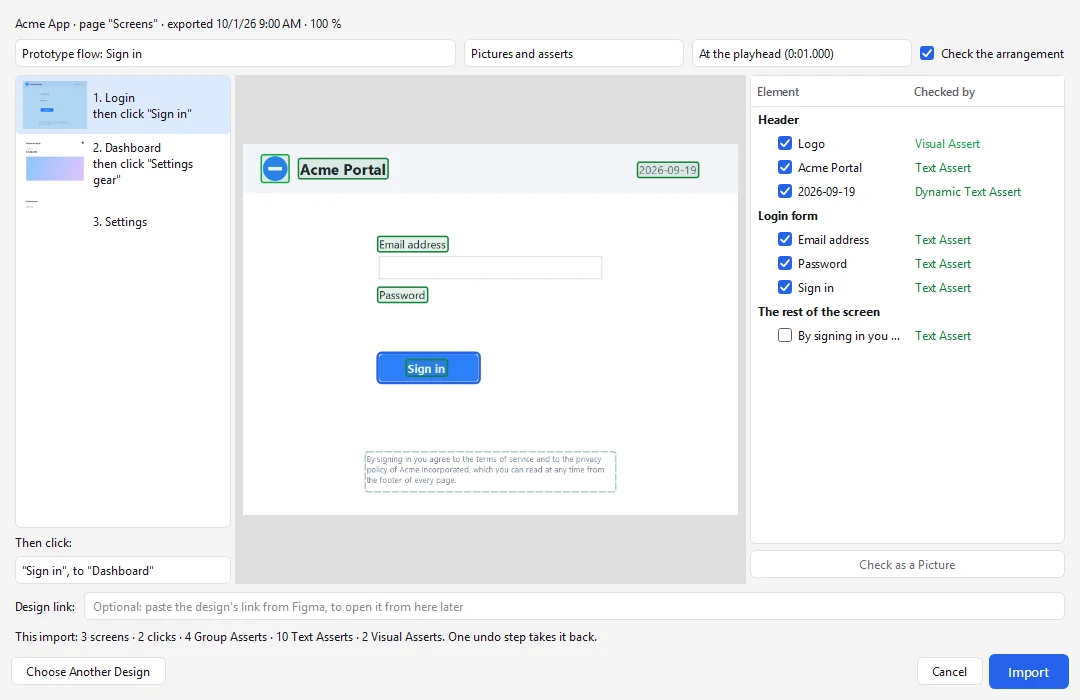
- Figma Integration: Bring a Figma design in with the suite's plugin: every screen becomes a reference picture with ready-made checks, and a sync follows the design when it changes.
2. Edit like a montage, or by prompt
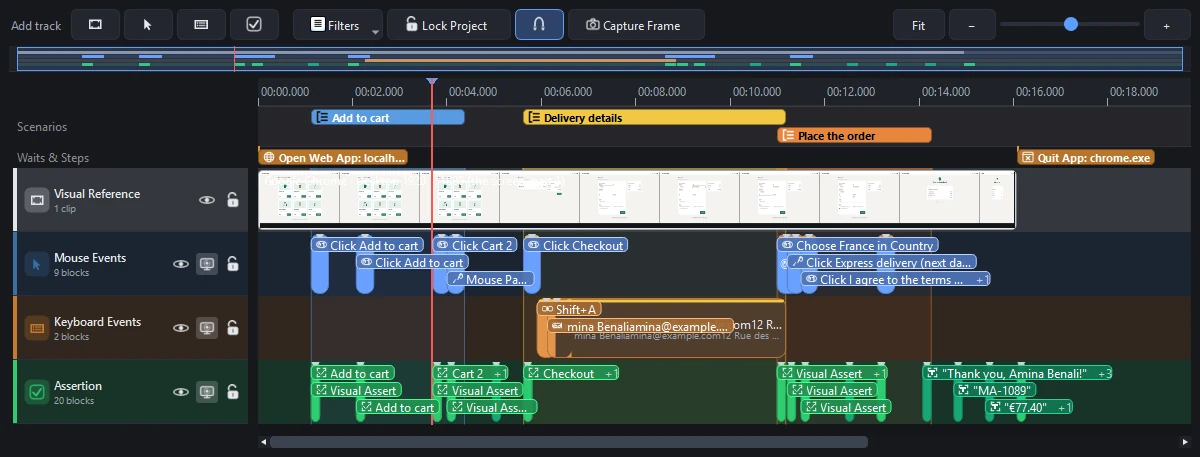
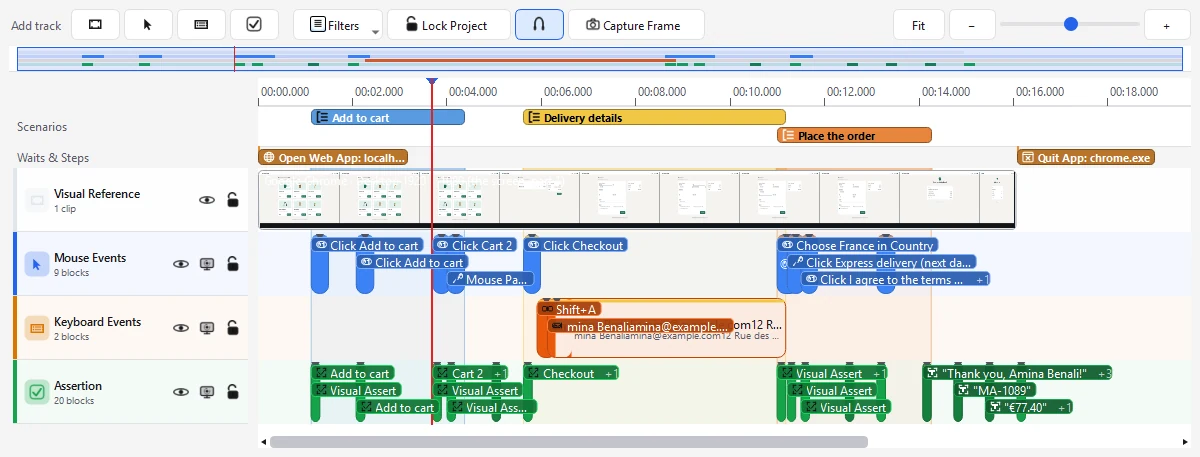
A timeline, not a script
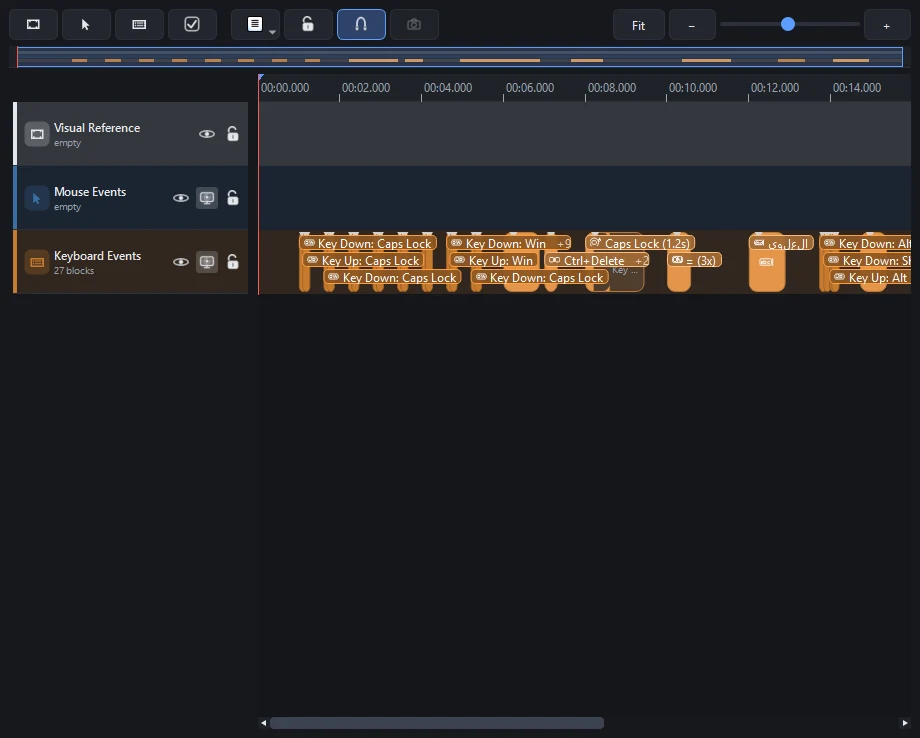
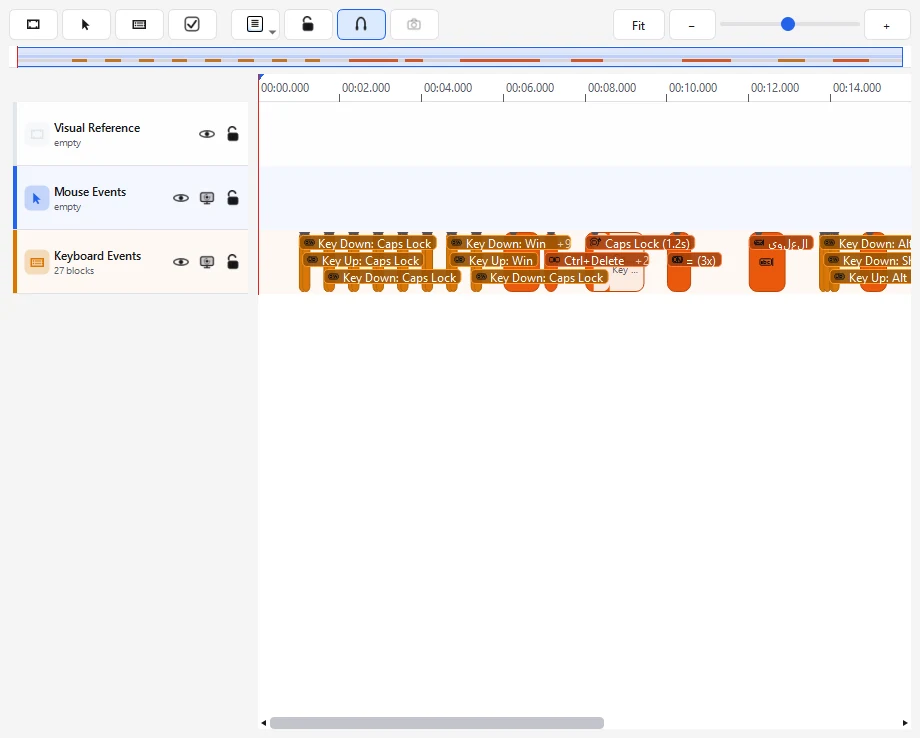
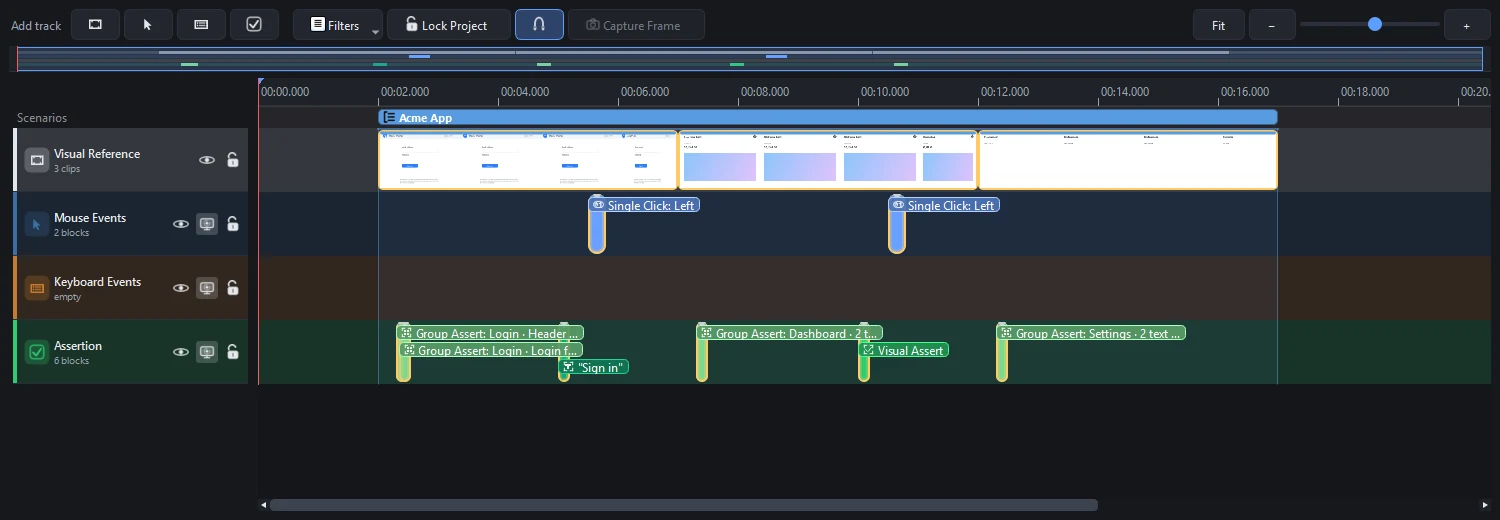
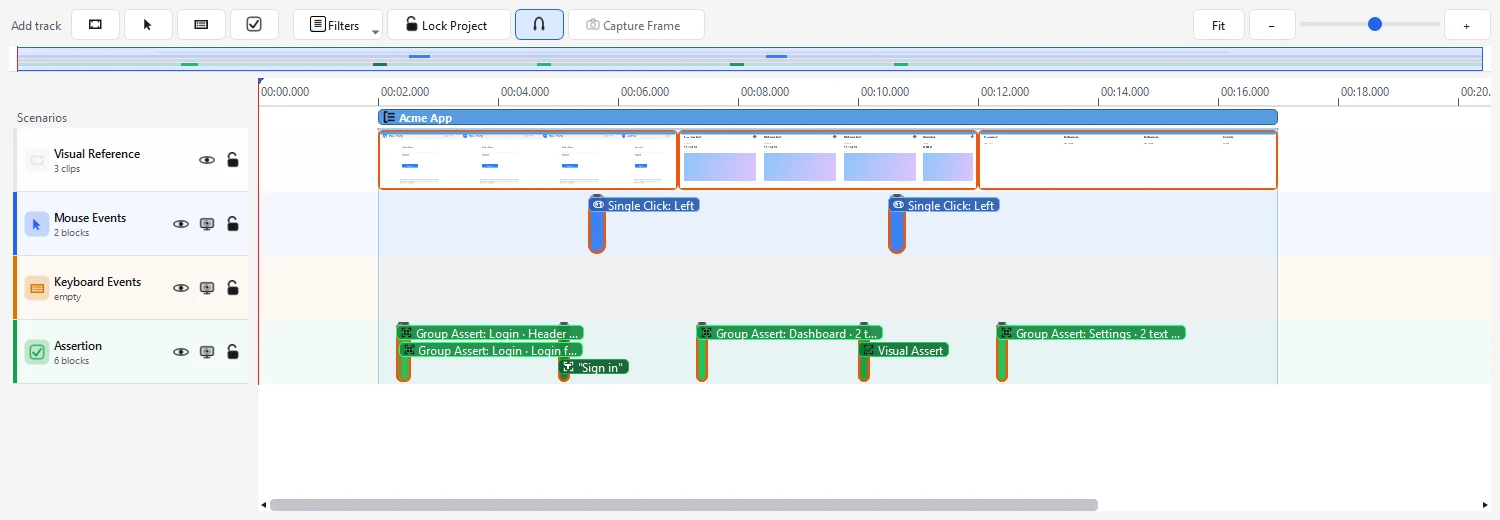
Every step of the test is a block on a track: mouse, keyboard, checks.Above them runs the recording itself, so you always see the screen at the moment a step happens.Prefer to ask?Describe the change in a prompt and the test is edited in place.
- Move, trim, copy, duplicate and delete blocks, with undo for everything
- Or ask the AI for the change in a prompt: a step renamed, a check adjusted, a wait added, without recording again
- Group steps into coloured Scenarios such as "Sign in" or "Checkout", then drop a whole Scenario into another test
- Add a Wait, launch or close an application, or run a Python script at any moment
- Give any block its own name and leave notes for your team with Markers
- Take a screenshot or capture a frame to build a new check from it
Before the feature is built
Test a feature before it exists
Import pictures from your design tool and prepare the test while the feature is still being built.
Start from the design
Test-driven development from your design, in Figma or any other tool: the test exists before the feature does.
Ready the day it is built
The test is then ready the day the feature is built.Its first run tells the team, element by element, whether what was built matches what was designed.
One test, for the whole life of a feature
- 11. Design
- 22. Development
- 33. Acceptance
- 44. Release and after
With GUI Test Studio
Tests written against the finished screens
1Design
Before it is built
Prepare the test from the design, in Figma or as pictures.
2Development
During development
Run every build against the test and see what is left to do.
3Acceptance
User acceptance testing
Show the business, check by check, that the feature does what was asked.
4Release and after
Regressions
Replay the same test on every release, for as long as the product lives.
Works with Figma
From a Figma design to a ready test
One file from Figma
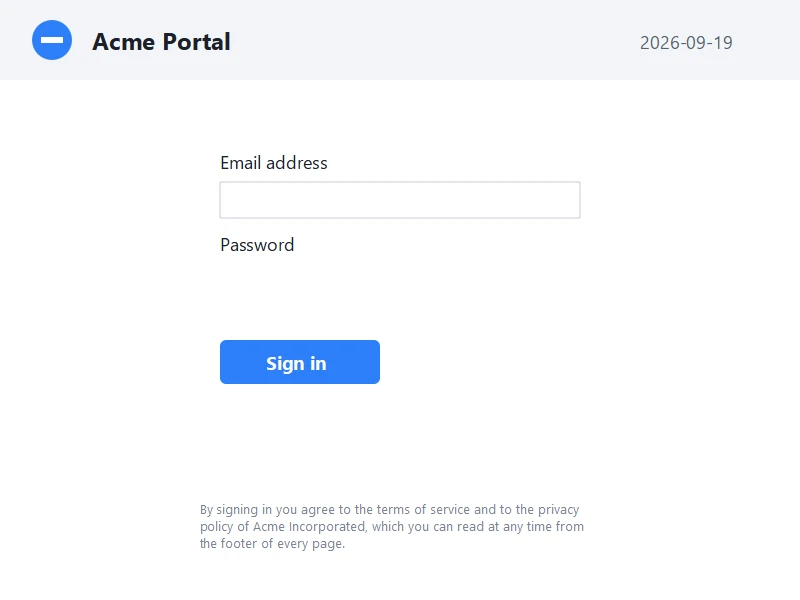
A plugin inside Figma saves the design as one file.
Ready-made checks
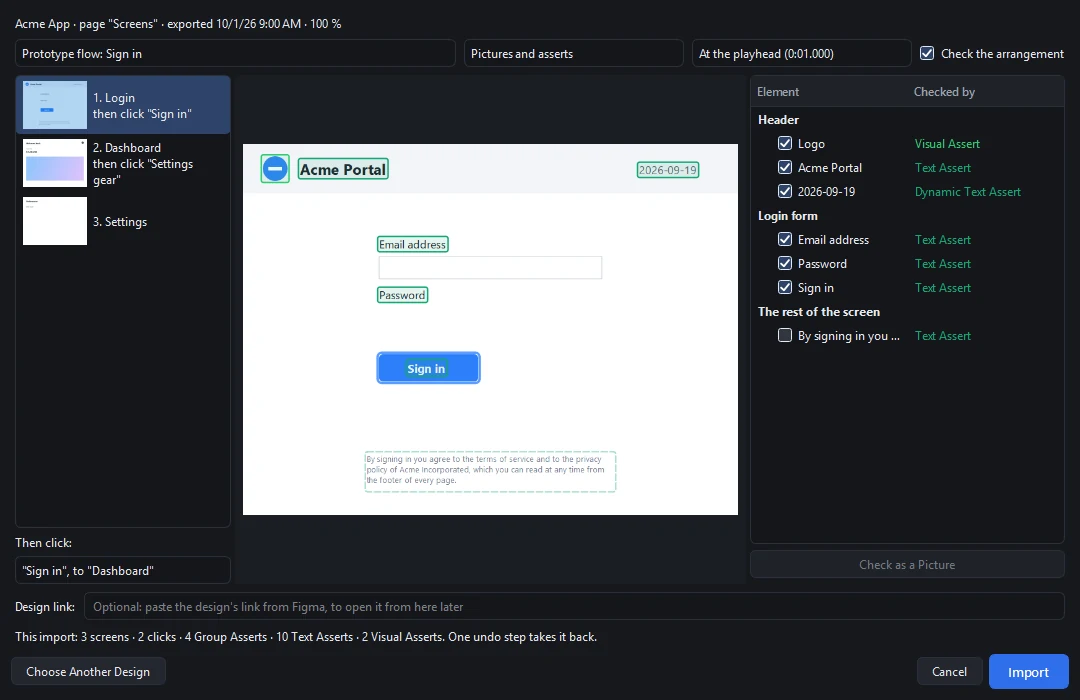
GUI Test Studio turns every screen into a reference picture with ready-made checks.
Kept in sync
A sync follows the design when it changes.
1Your designer exports the screens from Figma
2GUI Test Studio proposes a check for every element
3The test is on the timeline, ready before the feature is
3. Add the checks that matter
Six ways to say what correct means
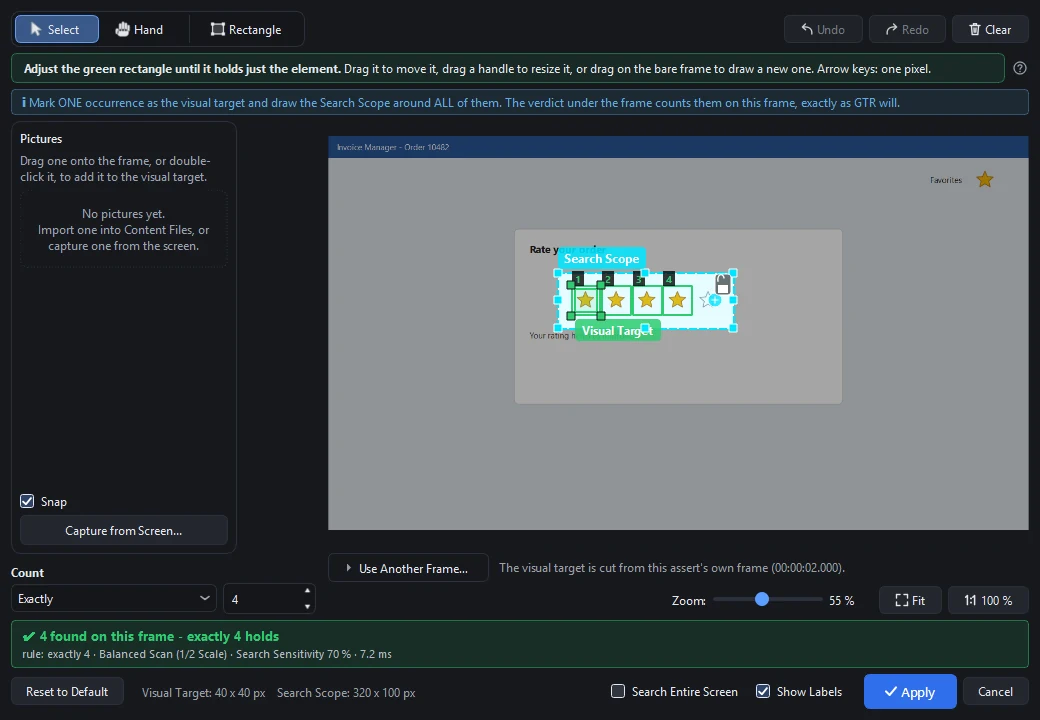
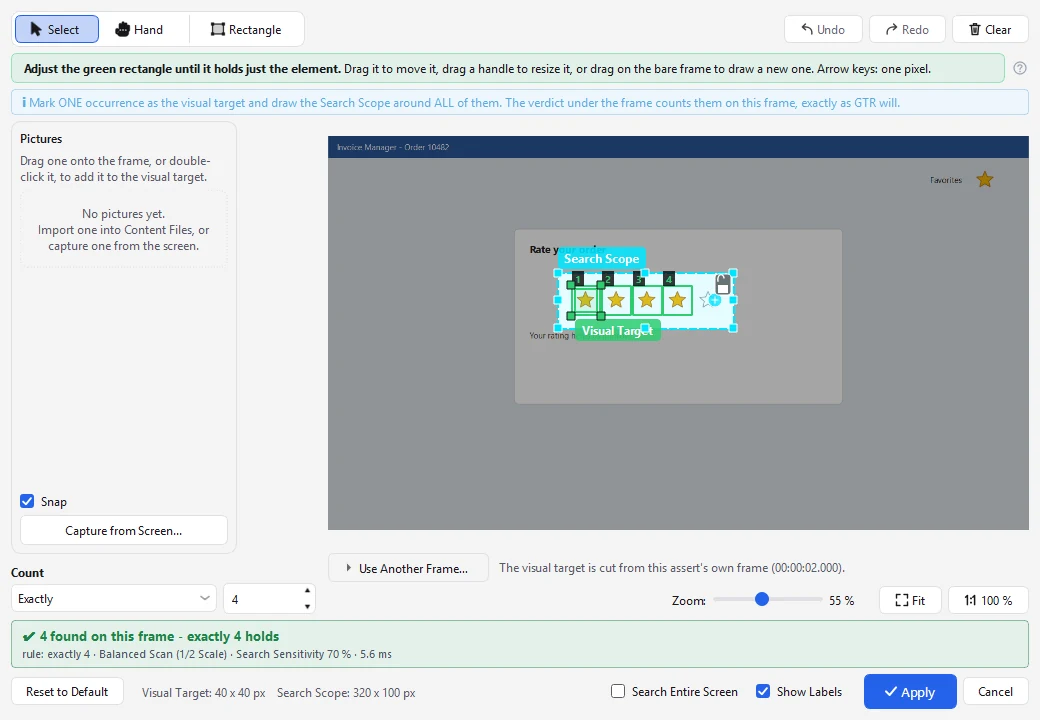
Each editor shows the frame of the recording and gives its verdict right there: you know before you run whether a check holds.
Precise Element Verification
Draw a box around any UI element.Verify that it appears, disappears (like a loading spinner), or matches an exact count (like a 5-star rating).
Example: after "Save", the green confirmation badge must appear, and the loading spinner must disappear.
4. Run and understand
Answers you can trust, and proof you can show
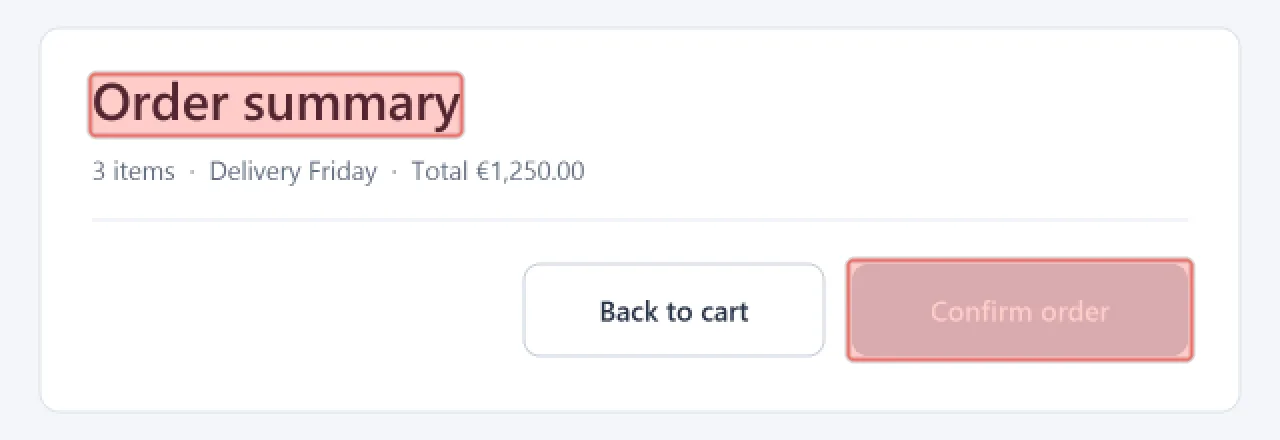
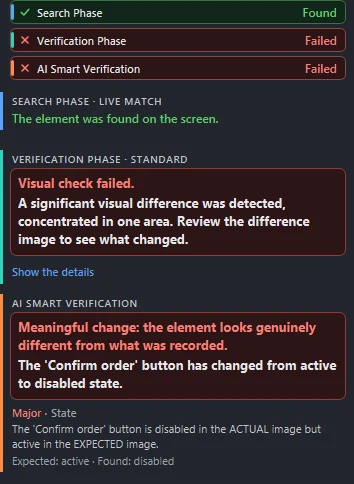
A test is only useful if its verdict is right.Every run ends with a Confidence Report that shows not only pass or fail, but how close each check came, and why.
On-premise or in the cloud, your choice
Confidence Report in natural language
1What changed, lit up on the screen
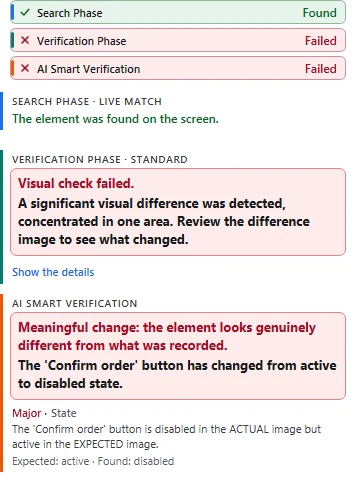
2What it means, in plain words
It finds every element two ways
The GTS Engine first asks the app where an element is, through its accessibility information, and finds it by sight when the app does not say.Two ways to the same element make a test hard to break.Then it compares what it found with what you expect.
Catches real regressions, ignores visual noise
The GTS Engine + AI filters out rendering artifacts, compression noise, and pixel jitter.But the moment a letter changes case, a digit shifts, or an icon changes color, it catches the bug instantly.
Prefer an exact comparison?Pixel-perfect matching can be turned on per check in GUI Test Studio.
It explains what changed
AI Smart Verification, the engine's optional AI side, describes a failure in plain words, such as "the button label changed from Save to Submit".Use a cloud model with your own key, or a local AI model: one we provide, or one you bring.
5. Keep it healthy
History tells you when a test started failing
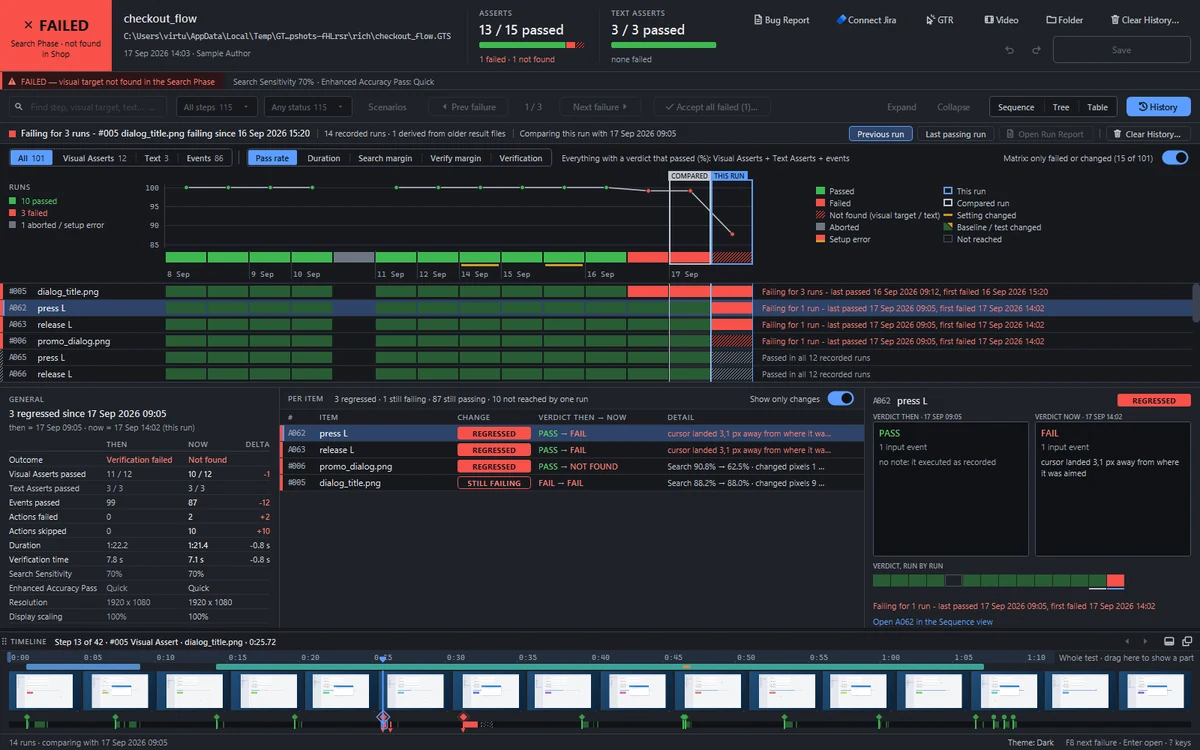
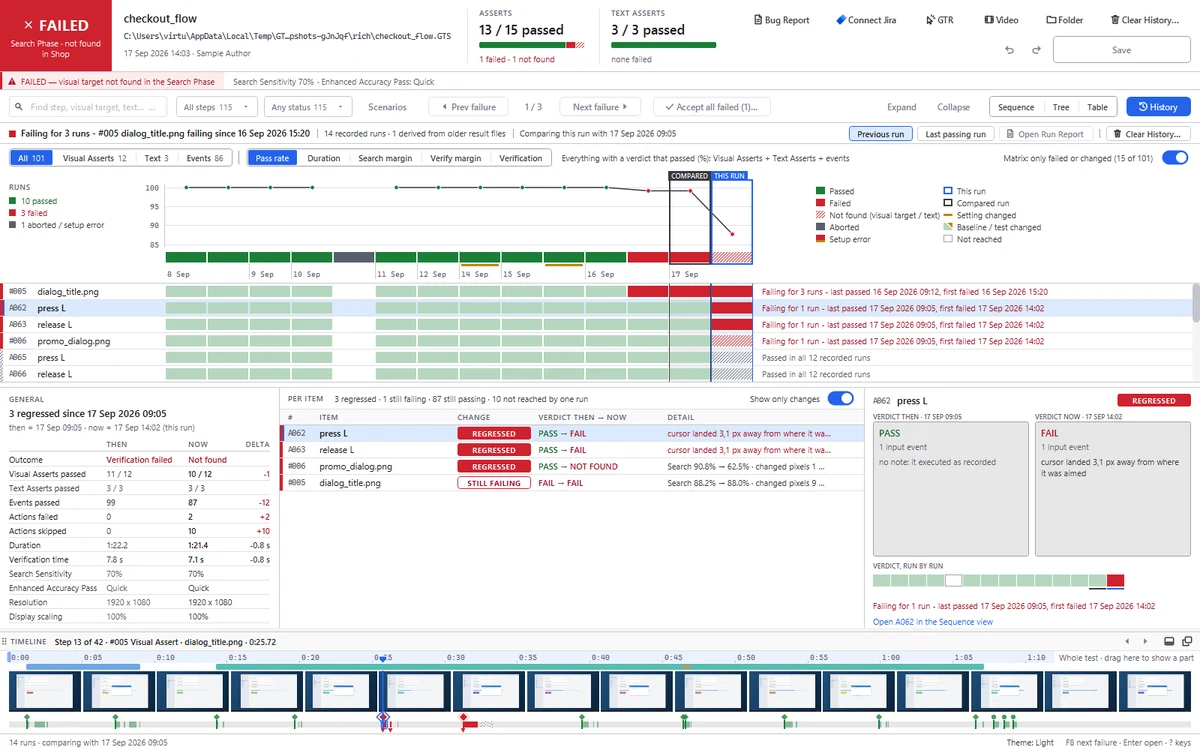
Every run is kept next to the test.History shows each check across runs, highlights what regressed since the last good run, and opens any past report exactly as it was.
- Multiple baselines: one expected version per browser, theme, screen or language
- Run a test from any point of its timeline while you work on it
- Decide per check whether a failure stops the test or lets it continue
- The apps speak English, French, Spanish, German and Italian
6. Automate the runs
The same test, in your pipeline
gtr-cli runs a test without a window, exactly like the app, in whichever CI/CD tool your team already uses.
Your pipeline
and any tool that runs a command
jobs: gui-tests: runs-on: [self-hosted, windows] steps: - run: gtr-cli run tests --format github --junit results.xml
Running 12 tests on the screen of the build agent...
PASSED 12 of 12 tests · exit code 0
- Exit code0 when every test passed, 1 when one failed: the build goes green or red.
- JUnit, JSON, MarkdownResults your pipeline shows as test results, with every step named.
- Every failure's evidenceExpected and actual pictures, the screen, the report and the video in one folder.
- A command builder inside both apps, so nobody has to learn the options by heart
- Retries, time limits and fail-fast for large suites
- Lightweight runner tests without the recording, for build agents
Also in the box
Details that make a daily difference
AI Smart Verification
The AI side of the GTS Engine + AI: an optional second look at a failed check, explained in plain language, with a cloud model and your own key, or a local AI model: one we provide, or one you bring.
Graphics card acceleration
Searches run on the graphics card when there is one, with the same results, sooner.
Capture from screen
Build a check from an element your recording never showed, straight from your screen.
Scenarios you reuse
Record "Sign in" once and drop it into every test that needs it.
Bug reports in one click
Prefilled with the steps, the pictures and how often it failed before.
Readable results
JUnit, JSON, Markdown, PDF and Excel.Everyone reads the format they like.
Five languages
English, French, Spanish, German and Italian, in both apps.
Guided from the first minute
Interactive guides walk a new user through recording, editing and running.
Try it on your own application
Fifteen days, every feature, no payment details.Most people record or prompt their first working test in their first session.
How does GUI Test Studio compare with the other tools?
Coded test tools, test automation platforms and visual testing services side by side with GUI Test Studio, so you can choose with every fact in hand.
 GUI Test Studio

 CypressKatalonmablApplitools Eyes