macOS App Testing: Create End-to-End Tests for Mac Apps and Safari From Windows
macOS app testing from Windows: create end-to-end and functional tests of a Mac app or of Safari through remote desktop, and run them on every build.
To test a macOS app end to end from Windows, connect to a real Mac with a remote desktop viewer, record a workflow in that window with GUI Test Studio, add checks of what the app shows, and run the test on every build.
What is end-to-end testing of a macOS app?
Definition
An end-to-end test of a macOS app runs a real workflow the way a user does, from the first screen to the result, and checks what the app shows at each step.
- A functional test checks one feature the same way: the button works, the record is saved, the total is right.
Many QA teams work on Windows and still have a Mac version of their app to check, or a website whose visitors use Safari.They usually test those by hand on the one Mac in the office, so macOS app testing happens late, and rarely on every build.
This guide shows how QA and software engineers create functional and end-to-end tests of a Mac app, or of a website in Safari, from the Windows computer they already use.Each test is recorded once and runs on every build, without writing code.
Why you cannot test Safari on Windows directly
Apple stopped making Safari for Windows in 2012, and its last version is far too old to show a modern website.Safari, and the apps written for macOS, run only on a Mac.
The usual workarounds each miss something.
- A browser built on WebKit, the engine behind Safari, is not Safari: it does not have Safari's own forms, fonts, scroll bars and settings.
- A Mac that a person checks by hand is real, but it is slow, and nobody checks every build.
- A Mac reached from Windows and tested by software is real and repeatable.
macOS UI testing tools: XCUITest, Appium Mac2 and a recorded test
Apple's own way is XCUITest, the UI testing part of XCTest: tests are written in Swift or Objective-C, in Xcode, on a Mac.The Appium Mac2 driver drives macOS apps through the same XCTest framework, so tests can be written in other languages, and it needs a Mac with Xcode, as its getting started guide says.
| What you compare | XCUITest | Appium Mac2 driver | GUI Test Studio |
|---|---|---|---|
| How a test is made | Written in Swift or Objective-C | Written as code, in Java, Python, JavaScript or another language | Recorded, then edited on a timeline, without code |
| What it needs | A Mac with Xcode | A Mac with macOS 11.3 or later, Xcode 13 or later and an Appium server | A Windows PC with a remote desktop viewer, and a Mac to connect to |
| How it finds elements | Through the app's accessibility information | Through the app's accessibility information, with XCTest | By sight, on the picture of the Mac's screen |
| Who it suits | Developers who own the app's code | Teams that already write Appium tests | QA teams on Windows who test the app as its users see it |
A coded test reads the app's structure, so it keeps working when the look changes, and it needs a Mac for every developer who writes one.A recorded test sees the screen as a user does, so it also catches what looks wrong, and anyone on the team can make one from Windows.
How it works: the viewer is just a window
A remote desktop viewer shows the Mac's screen in a window on Windows, and sends your mouse and keyboard to the Mac.To GUI Test Studio, that window is an app like any other.
Your Windows PC
GUI Test Studio
Records the viewer's window, replays the mouse and the keyboard into it, and checks what it shows.
The Mac
On a desk, in a rack or in the cloud
Runs your Mac app or Safari, with a user signed in.
Connect
Open the viewer to the Mac
Record
Pick the viewer's window
Check
What the Mac shows
Report
Expected and found, side by side
GUI Test Runner-Recorder records the viewer's window, with An app in its question What do you want to test?, or a part of the screen with An area.When the test runs, it moves the real mouse and presses the real keys in that window, and the viewer passes them on to the Mac.How a recording works is explained in Record a test.
Which remote desktop viewer to use
| Viewer on Windows | What runs on the Mac |
|---|---|
| A VNC viewer, such as RealVNC Viewer or TightVNC | The Mac's own Screen Sharing, turned on in System Settings.Nothing to install on the Mac. |
| NoMachine | The NoMachine program, installed on the Mac. |
| Parsec | The Parsec app, installed on the Mac. |
| Jump Desktop | Jump Desktop Connect, installed on the Mac. |
| Chrome Remote Desktop | Chrome Remote Desktop's host, installed on the Mac. |
Any of them works, because GUI Test Studio only needs what every viewer gives: a window that shows the Mac's screen and takes the mouse and the keyboard.Choose the one your team already uses, or the Mac's own Screen Sharing with a free VNC viewer.
Where the Mac comes from: a desk, a rack or a cloud Mac for testing
Three places can hold the Mac, and the test does not care which one.
A Mac on a desk is the simplest start: the Mac your designers or developers already have, kept on and signed in.
A Mac mini in a rack serves the whole team from a server room, often with no monitor plugged in.
A cloud Mac, such as an Amazon EC2 Mac instance or a Mac from MacinCloud or MacStadium, is a real Mac you rent and reach over the internet.
A cloud Mac often comes with a command line only.Follow its provider's guide to turn on a desktop you can see, sign a user in and allow screen sharing, then connect to it like a Mac on your desk.
Plan a functional test of a Mac application
A good end-to-end test follows one workflow your users care about, and proves its result.Write it down in a few lines before you record: where it starts, what the user does, and what the screen must show at the end.
A functional test of a Mac app
- 1Open the app and sign inVisual Assert: the Sign in button is there and looks right
- 2Click New client and type the client's nameVisual Assert: the button and the field are found before each action
- 3Click SaveText Assert: the message reads Client saved
- 4Open the new invoiceDynamic Text Assert: the invoice number has the right shape, whatever its value
- 5Check the list of clientsText Assert: the new client's name is in the list
- Start every run from the same screen, such as the app's first window after it opens.
- Keep one workflow per test, so a failure points at one feature.
- Check the result, not only the clicks: a saved message, a new row in a list, a total.
- Use test data that does not change between runs, such as the same client's name.
Which check suits which element is explained in Choose a check.
Create an automated test of your Mac app, step by step
The connection to the Mac is set up once.After it, creating a Mac test is the same as creating any test.
- 1
Get a Mac with a user signed in
Use a Mac on your desk, a Mac mini in a rack or a cloud Mac.A user must be signed in, with a desktop on the screen, because a connection that only opens a command line shows nothing to test.
Keep the Mac from sleeping, and turn off the screen saver and the screen lock, so the desktop is there when a run starts.
- 2
Turn on remote access on the Mac
In System Settings, under General and Sharing, turn on Screen Sharing, or Remote Management.In its options, allow VNC viewers to control the screen with a password.With another remote desktop tool, install its host on the Mac instead.
- 3
Connect from Windows at a fixed size
Open the viewer on the Windows computer, connect to the Mac, and keep its window at the same size on every run, with the Mac's screen shown at 100 percent.Turn off any scale to fit that changes the picture when the window changes.
Give the Mac a fixed display resolution.Set the viewer's picture quality to high, or lossless where it has that setting, so edges and letters stay sharp.
- 4
Record the workflow through the viewer
In GUI Test Runner-Recorder, click Record, choose An app and pick the viewer.Do the workflow on the Mac through the viewer, from the first screen to the result, then press the Stop key.
To start every run the same way, tick Start the app at the beginning of the test and close it at the end.A Run App step can also start the viewer with the Mac's address, when the viewer takes it on its command line, and open it maximized.
- 5
Choose what the test verifies
When the recording stops, keep Verify Visual Elements on, and turn on Verify Text when the words on the screen matter.Keep Verify What Appears on, so a dialog or a confirmation message gets its own checks.
Each card of that question is explained in What to verify.
- 6
Add the checks that prove the result
Open the test in GUI Test Studio and add a Text Assert for the message that proves the workflow worked, and a Dynamic Text Assert for a value that changes on every run, such as an order number or a date.
Group the steps into Scenarios, such as Sign in and Create a client, so a failure says which part of the workflow broke.
- 7
Run it and read the Confidence Report
Click Run Test in GUI Test Runner-Recorder.The Confidence Report shows every step, and for each check what was expected and what the Mac showed.
- 8
Run it on every build
Run the test with gtr-cli on a Windows build agent that has a signed-in desktop and the viewer connected to the Mac.
The checks of a macOS UI test, found by sight
On a Windows app, the GTS Engine first asks the application where an element is, through the accessibility information Windows apps give, and finds it by sight when the application does not say.Through a viewer, the Mac's screen arrives as a picture: there is nothing to ask, so every element is found by sight.
| Check | What it proves on the Mac | Example |
|---|---|---|
| Visual Assert | An element is on the screen and looks as recorded.It also tells the next click where the element is now. | The Save button, a toolbar icon, a chart |
| Text Assert | A text reads as expected, whatever its font or colour. | Client saved, a window title, a total |
| Dynamic Text Assert | A value has the right shape, whatever its value. | An invoice number, today's date, a price |
| Text Absent Assert | A text is gone, or never shows. | An error message after a correct sign-in |
| Group Assert | Everything that appeared on a screen is there together. | A dialog with its title, its fields and its buttons |
Every check waits up to its timeout for what it looks for, so a Mac that answers a little late is not a failure.Why finding by sight is reliable, and how it tells look-alikes apart, is explained in how GUI Test Studio finds the elements.
Safari automation testing: an end-to-end test in the real Safari
An end-to-end test of a web app in Safari is created exactly the same way.Open Safari on the Mac, go to the page, and record the viewer's window while you go through the workflow: sign up, add a product to the cart, pay with a test card, and check the confirmation.
- The test runs on Safari itself, with its own engine, its own form controls and its own fonts.
- A layout that breaks only in Safari breaks in the test too.
- A Text Assert reads what Safari really shows, and a Visual Assert compares what Safari draws with what it drew when the test was recorded.
Start each Safari test from a known page, such as the sign-in page in a private window, so no earlier session changes what the test sees.
How the other browsers and the emulated devices are covered, and which browsers to test first, is in our guide to cross-browser testing.
Read the result of a run
After every run, the Confidence Report opens with the verdict at the top and every step under it.A failed check shows what was expected beside what the Mac showed, with the difference lit up, so you see at once whether the app is wrong or the screen only moved.
Every part of the report is explained in The Confidence Report.
Tips for reliable remote desktop testing
A test through a viewer passes every time when the picture and the timing are the same on every run.These habits get you there.
| Topic | What to do |
|---|---|
| Latency | Every assert waits up to its timeout, 5 seconds by default, for what it looks for, so a Mac that answers a little late is not a failure.Where the Mac is slow, such as after an app starts, raise that assert's timeout or add a Wait. |
| The Command key | Many viewers send the Windows key as Command and Alt as Option, but Windows may catch some Windows key shortcuts itself.Turn on the viewer's option that sends system keys to the remote computer, and try each shortcut once while you record. |
| Picture quality | A viewer that compresses the picture blurs edges a little differently on every run.Set its quality to high or lossless, and use the Relaxed Verification Strictness on a connection you cannot change. |
| Window size and scaling | Keep the viewer's window at one size and the Mac's screen at 100 percent in it.A picture scaled to fit a different window is a different picture. |
| Retina and resolution | Give the Mac one fixed resolution.A Mac mini with no monitor may pick a small one by itself: set it, or plug in a display emulator. |
| Notifications and pop-ups | Turn on Do Not Disturb on the Mac, so a notification never covers what the test looks for. |
| The starting point | Before a run, put the Mac back on the screen where the recording started.GUI Test Runner-Recorder checks it and tells you when the screen is not where the test starts. |
A Baseline Profile per Mac keeps a separate expected picture for each one, when two Macs draw the same window a little differently, such as two macOS versions.
Run your Mac tests in CI/CD from a Windows agent
Your build agents stay on Windows.Only one Mac is needed, reached through the viewer, and gtr-cli, the command-line runner, runs the Mac tests like any other test.
gtr-cli run tests\mac --countdown 0 --junit results\junit.xml --artifacts results\artifactsPreparing the build machine, the exit codes and the JUnit results are explained in Run tests in CI/CD.
What to know before you start
| Limit | What it means |
|---|---|
| A Mac is needed | The app or Safari runs on a real Mac, on a desk, in a rack or in the cloud.GUI Test Studio itself runs on Windows. |
| Only what the viewer shows | The test sees and controls what the viewer's window shows.Keep the part of the Mac's screen you test inside it. |
| No accessibility information | A viewer passes a picture of the Mac's screen, so every element is found by sight and every text read from the picture. |
| Safari on a Mac only | Safari on an iPhone or an iPad runs on the device, which this setup does not reach. |
Key takeaways
- 1An end-to-end test follows a whole workflow on the Mac, such as sign in, create, save, and checks the result at each step.
- 2A real Mac is needed, because there is no current Safari for Windows and Mac apps run only on a Mac.
- 3The Mac can be anywhere: on a desk, in a rack or in the cloud, reached through a remote desktop viewer.
- 4The viewer is a window, so GUI Test Studio records it, replays real input into it and checks what it shows with Visual Asserts and Text Asserts.
- 5Keep the picture steady: a fixed window size, 100 percent scaling, a fixed resolution and high picture quality, then run it with gtr-cli on every build.
Questions
How do you create end-to-end tests for a macOS app?
Record a real workflow on the Mac, such as signing in, creating a record and saving it, then add checks of what the app shows.With GUI Test Studio you do it from Windows: a remote desktop viewer shows the Mac, and GUI Test Runner-Recorder records that window.The test then runs on every build with real mouse and keyboard input.
Can I test Safari on Windows?
Not with Safari running on Windows: Apple stopped making Safari for Windows in 2012.You can test the real Safari from Windows by reaching a Mac through a remote desktop viewer and recording that window with GUI Test Studio.The test then runs on Safari itself, on the Mac, with real mouse and keyboard input.
What is an alternative to XCUITest for macOS UI testing?
XCUITest tests are written in code, in Xcode, on a Mac.The Appium Mac2 driver lets you write them in other languages, and it still needs a Mac with Xcode.GUI Test Studio records the test instead, from a Windows computer, and checks what the Mac's screen shows without any code.
Do I need a Mac to test a Mac app?
Yes, somewhere.The Mac can be on your desk, in a rack or in the cloud, such as an Amazon EC2 Mac instance or a Mac from MacinCloud or MacStadium, and nobody has to sit in front of it.The tests are recorded and run from a Windows computer, through a remote desktop viewer.
Can I run macOS in a virtual machine on Windows to test?
Apple's licence for macOS allows macOS virtual machines only on Apple hardware, so a Windows PC is not the place for one.Run the virtual machine on a Mac, with a tool such as Parallels Desktop, UTM or VMware Fusion, and reach it from Windows through a remote desktop viewer like any other Mac.
Can the test read text on the Mac's screen?
Yes.Text Asserts read what the Mac shows with GUI Test Studio's own text recognition, as they do on any screen.Keep the viewer's picture quality high, so the letters keep sharp edges.
How does the test press the Command key?
Through the viewer, the way your own keyboard does.Many viewers send the Windows key as Command and Alt as Option, but Windows may keep some Windows key shortcuts for itself.Turn on the viewer's option that sends system keys to the remote computer, and try each shortcut once while you record.
Can Mac tests run in a CI pipeline?
Yes. gtr-cli runs the test on a Windows build agent and gives your pipeline an exit code and JUnit results.The agent needs a real, signed-in Windows desktop, because a Windows service has no screen, and the viewer must be connected to the Mac when the run starts.
Mac, macOS, Mac mini, Safari, Xcode, XCTest, iPhone, iPad, Appium, Parallels Desktop, UTM, VMware Fusion, Amazon EC2, MacinCloud, MacStadium, RealVNC, TightVNC, NoMachine, Parsec, Jump Desktop, Chrome Remote Desktop and Windows are trademarks of their respective owners.
Keep reading
All articles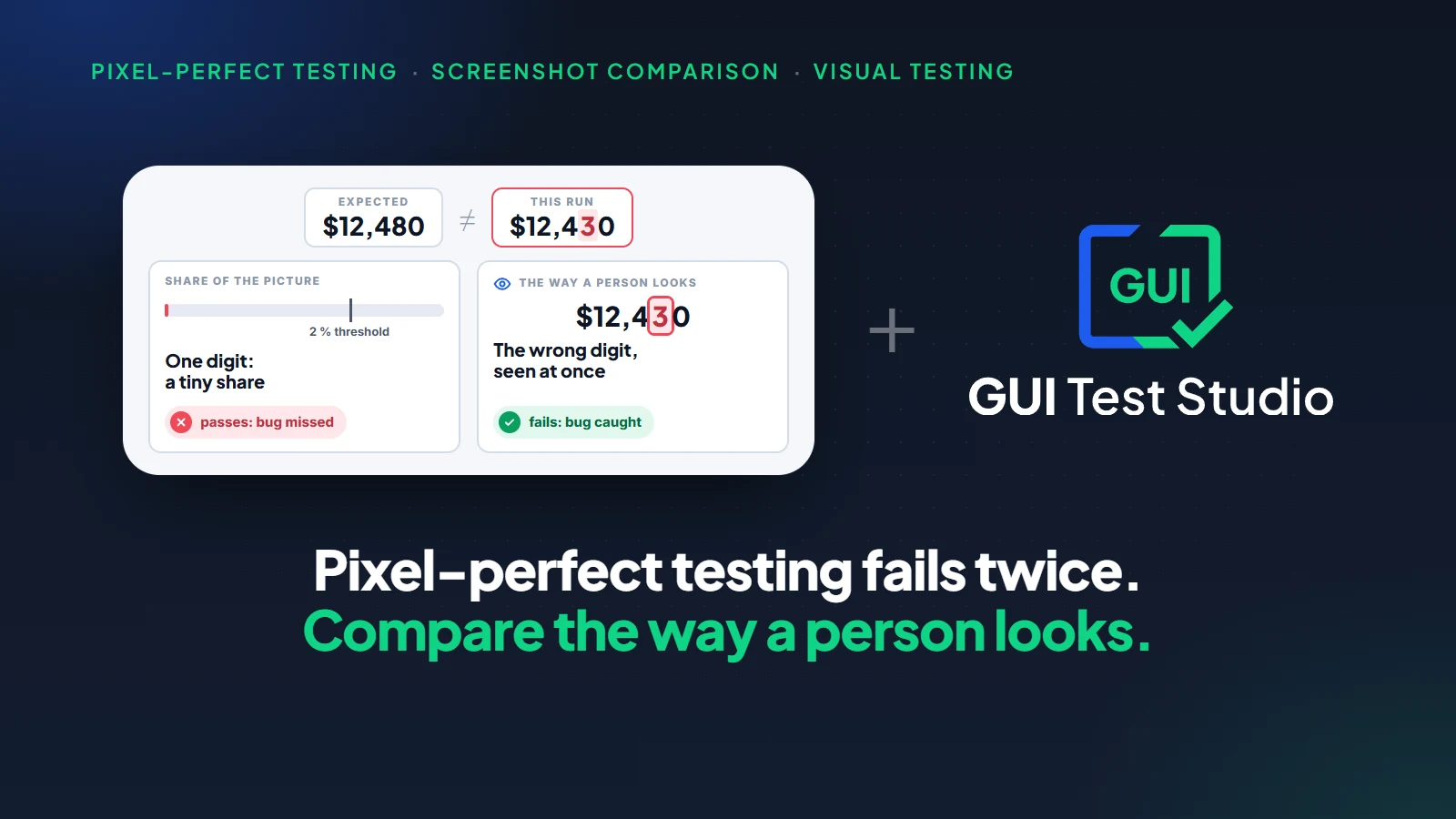
Visual testing
Pixel-Perfect Screenshot Testing: Why It Fails, and What Catches Real Visual Bugs
12 min read
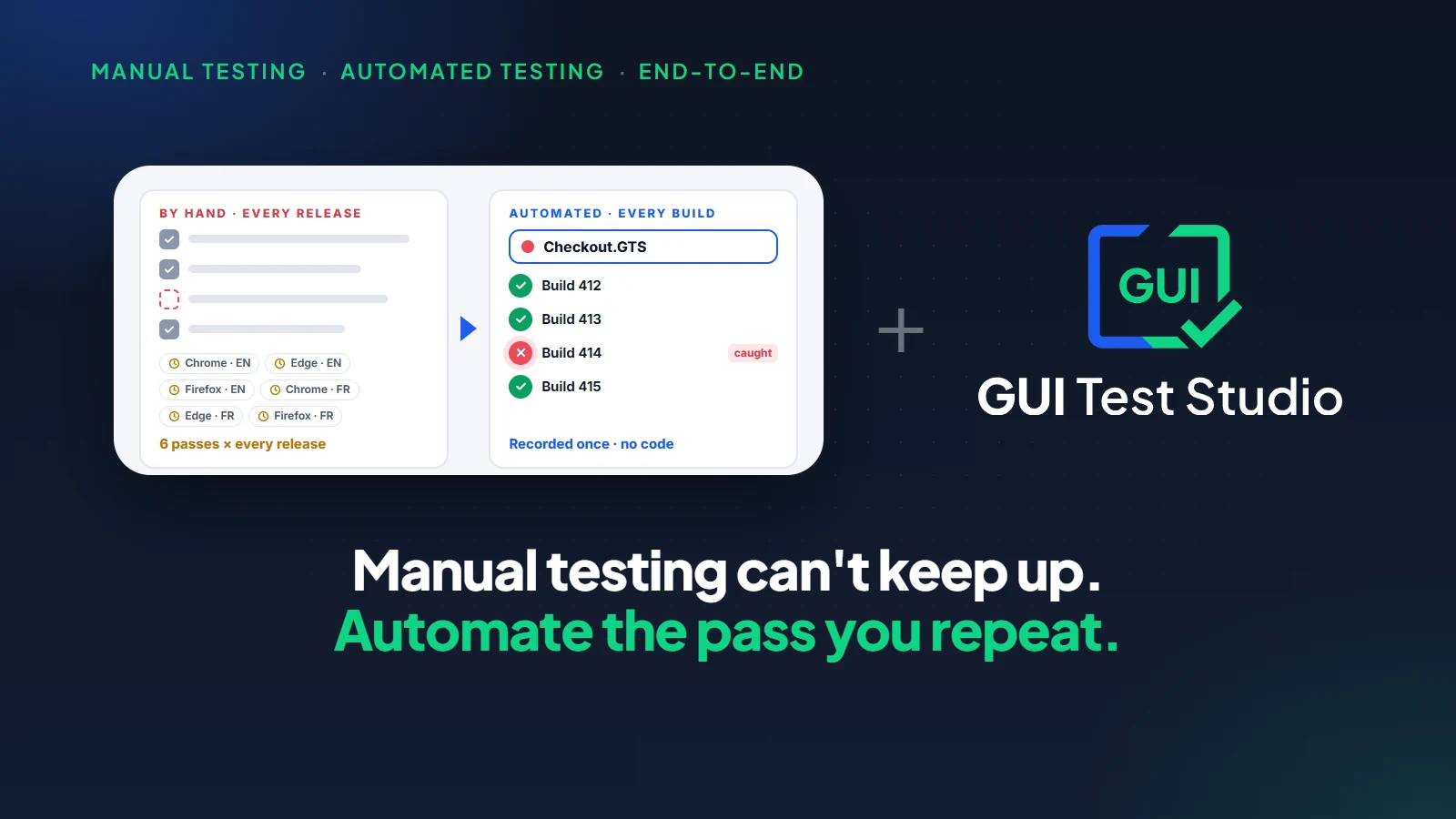
Test automation
Manual Testing vs Automated Testing: Why Manual Testing Falls Short for End-to-End Tests
15 min read
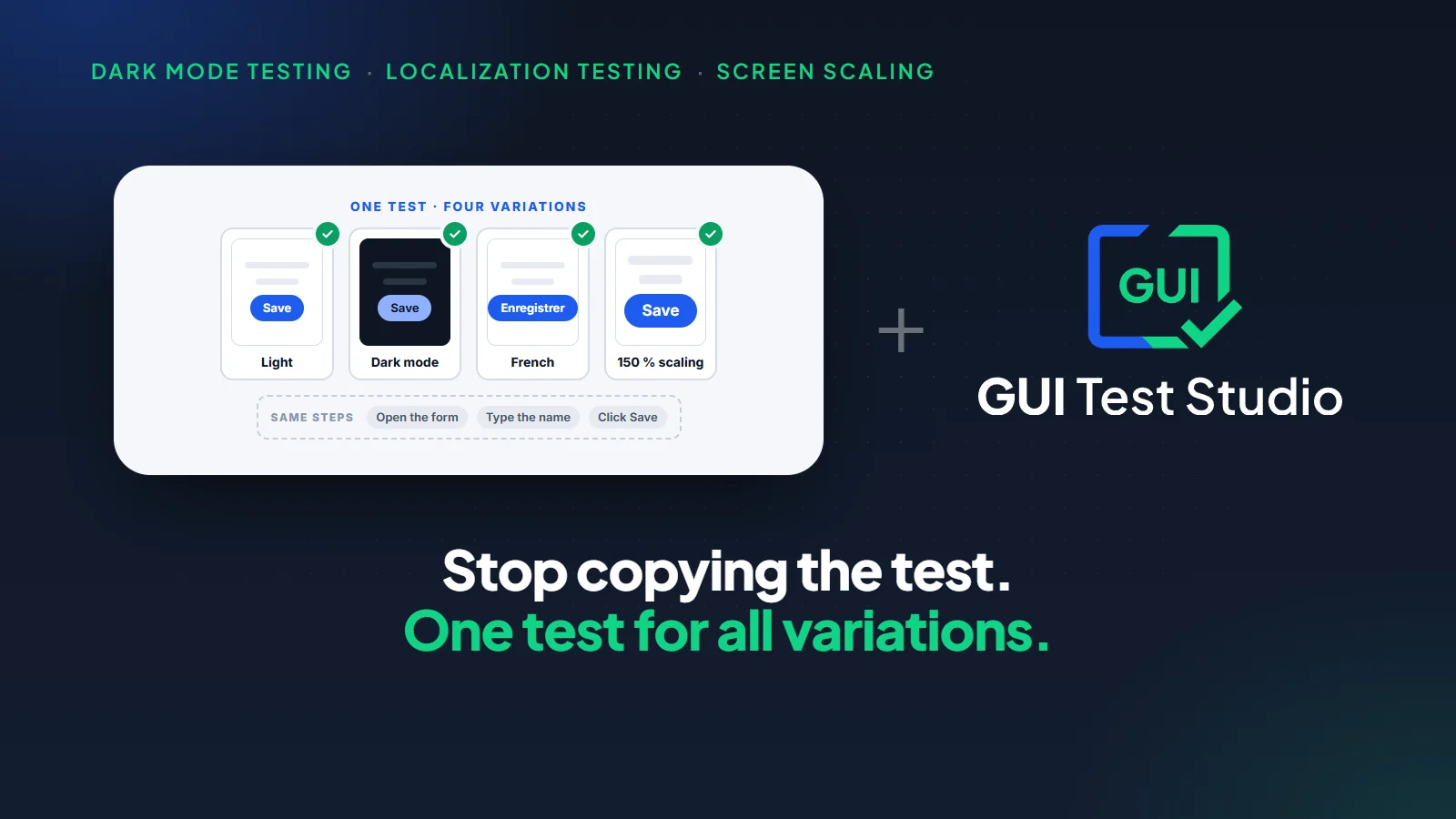
Visual testing
Dark Mode Testing, Other Languages, Other Screens: One Test for All Variations
10 min read