
Visual testing
Visual testing with computer vision and AI
Visual testing checks what the user really sees: the right element, the right words, in the right place and the right colour.GUI Test Studio's GTS Engine + AI finds every element on the screen and compares it with what you recorded.AI Smart Verification explains each difference in plain words.
The problem
Why visual testing is hard to get right
Comparing screens sounds simple.In practice, a comparison is either too strict or not strict enough.
Too strict, it fails on nothing
A comparison pixel by pixel fails on font smoothing, video compression and shades nobody can see.
Too loose, it misses defects
Raise the tolerance and a missing icon, a changed price or a wrong colour slips through.
A difference is hard to read
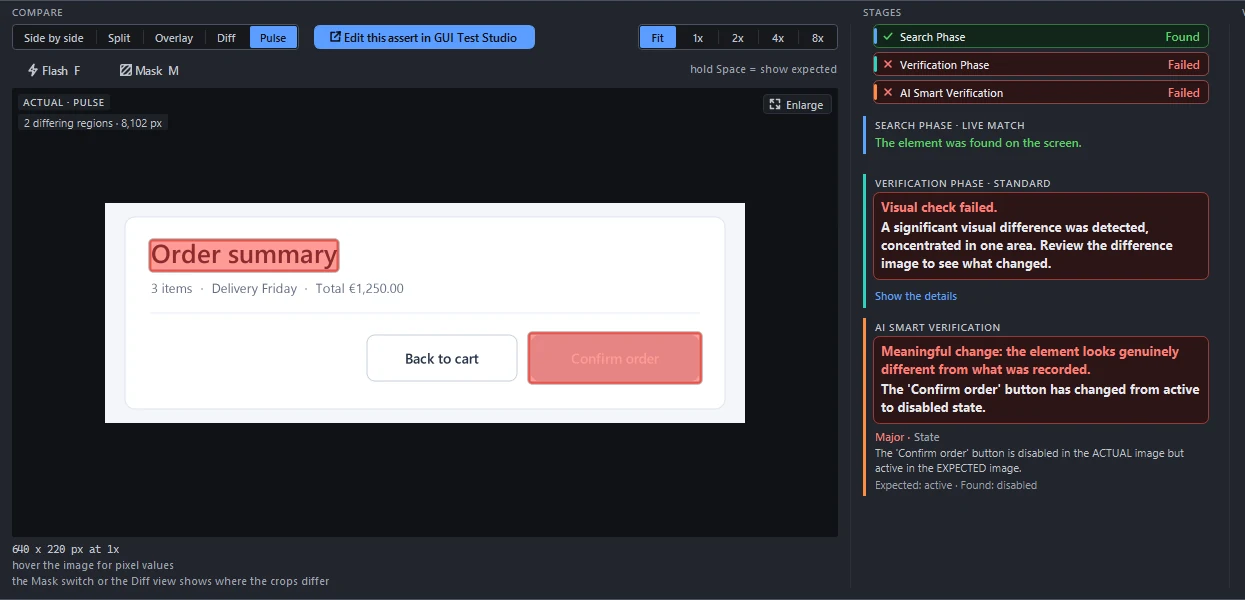
A picture of changed pixels says where something changed, never what changed or whether it matters.
How it works
Visual tests made the way you already test by hand
- 1
Record, or describe
Use your application as a user would, or describe the workflow in a prompt and your AI assistant does it for you.Every click, key and gesture is recorded on the real screen, with the checks of what appeared.
- 2
Verify
Visual, text, layout and group checks confirm what the user sees: the right element, the right words, in the right place.
- 3
Edit like a video
Refine the test on a timeline: move, trim, rename and group steps, with undo for everything.Or just ask the AI for the change in a prompt.
- 4
Run on every build
Run it from the app, or from your CI/CD pipeline with the command-line runner.
- 5
Read the report
The Confidence Report says what passed, what failed and why, in plain words, with the pictures to prove it.
How it works
Computer vision that ignores noise and catches real regressions
Finds the element first
Each check looks for its element on the screen before it compares anything, so a window that moved is not a failure.
Judges changes where they matter
The comparison measures how much changed in one place: scattered noise passes, and a changed letter or icon fails.
AI Smart Verification
When a comparison fails, AI says in plain words what changed and whether it is a real problem.It runs in the cloud with your own key, or on a local AI model: one we provide, or one you bring.
Text and changing values
Text checks read the words on the screen, and a value that changes every time, like a date or a total, can be checked by its format.
A version per environment
Keep a version of a check for light and dark mode, another language or another screen, and every run uses the right one.
Accept a change in one click
When a screen changes on purpose, accept the new look from the report and the test expects it from then on.
Questions
Visual testing, answered
See the GTS Engine + AI on your own screens: book a free 30-minute call with our team.
Or start on your own: the guides walk you through your first test in a few minutes.
Learn more